
Kling Motion Generation API Integration Guide
This article will introduce a Kling Motion Generation API integration guide, which can generate official Kling videos by entering custom parameters.
¶ Application Process
To use the Kling Motion Generation API, first go to the 辰汐ai Console to obtain your API Token for later use.

If you have not yet logged in or registered, you will be automatically redirected to the login page to register and log in, and you will automatically return to the current page after completion.
One API Token can call all platform services, without the need to apply separately for each service. The first application will be granted free credits for a free trial; when credits are insufficient, you can recharge your general balance in the Console.
📘 Full documentation: Kling Motion Generation API →
¶ Basic Usage
First, let's understand the basic usage method: enter the prompt prompt, reference image image_url, and reference video link video_url to obtain the processed result. Then we also need to enter the model mode. Currently, there are mainly the std and pro models. The specific details are as follows:
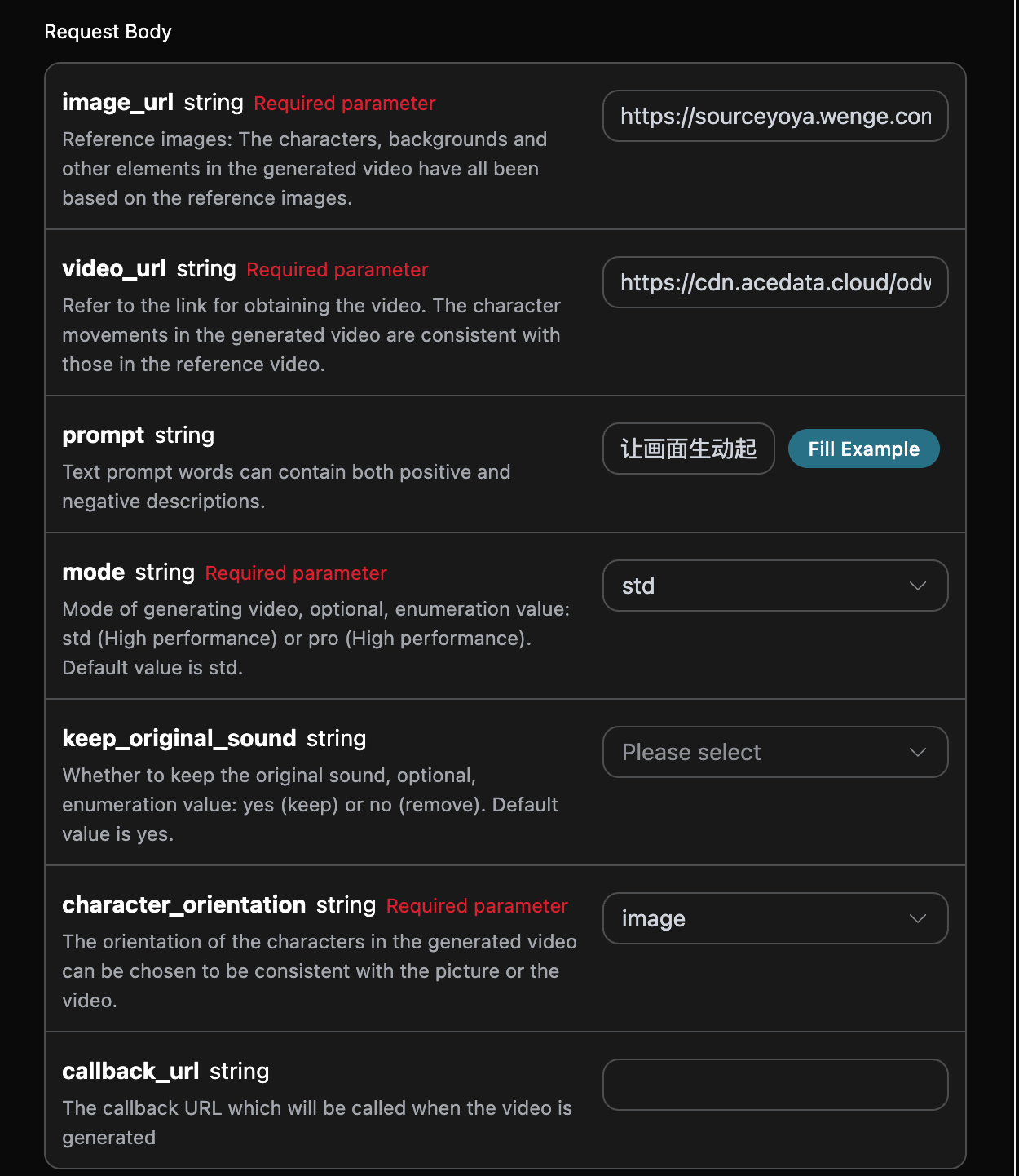
You can see that we have set the Request Headers here, including:
accept: The format of the response result you want to receive. Enterapplication/jsonhere, which is JSON format.authorization: The key for calling the API. After applying, you can directly select it from the dropdown.
In addition, the Request Body is set, including:
image_url: URL of the character appearance reference image. Supports JPG/JPEG/PNG, file ≤50MB, both width and height ≥300px, aspect ratio 1:2.5–2.5:1; the character should clearly show the upper body or full body and head.video_url: URL of the action reference video. Supports MP4/MOV, file ≤100MB, width and height each 340–3850px, at least 3 seconds; whencharacter_orientation=image, the maximum length is 10 seconds, and whencharacter_orientation=video, the maximum length is 30 seconds. It is recommended to use a continuous single-shot video in which the character always remains in the frame.mode: The mode for generating videos, mainly including standard modestdand fast modepro.keep_original_sound: You can choose whether to retain the original video sound. Enum values: yes, no.character_orientation: The orientation of the character in the generated video. You can choose to match the image or the video. Enum values: image, video.prompt: Prompt.callback_url: The URL for receiving callback results.async: Optional. When set totrue, the API immediately returnstask_id; there is no need to providecallback_url, and the result can then be obtained by polling through the corresponding task query API.
After selecting, you can find that the corresponding code is also generated on the right, as shown in the image:
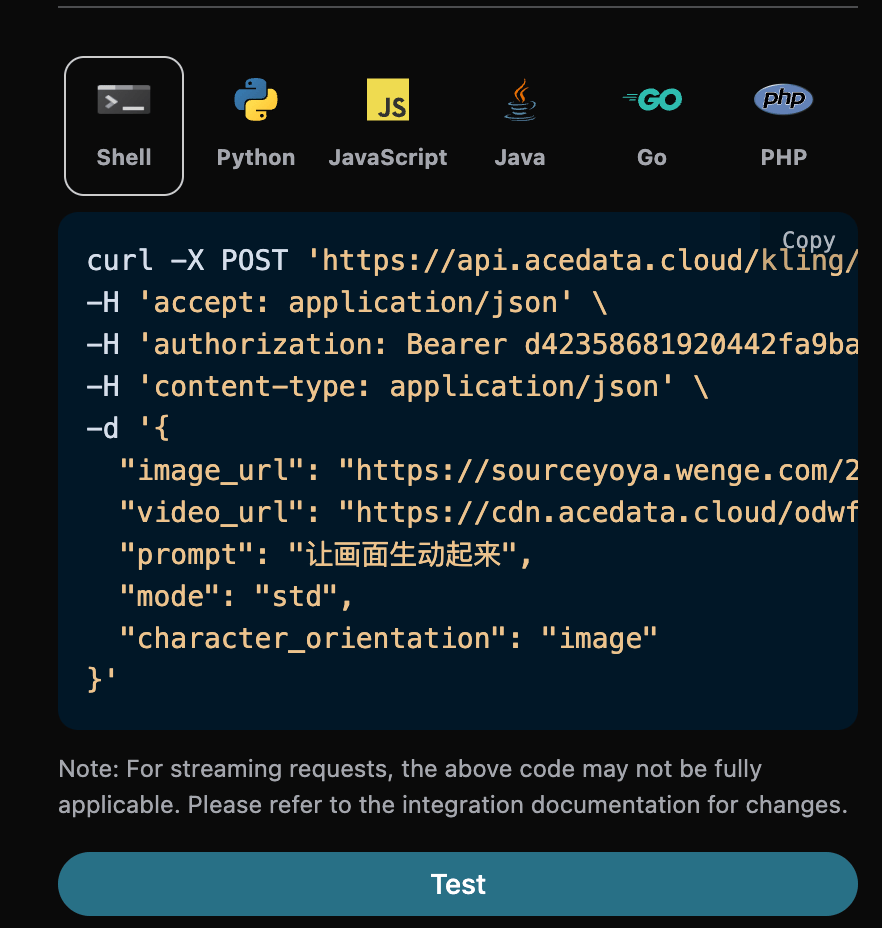
Click the “Try” button to test. As shown above, we obtain the following result:
{
  "success": true,
  "video_id": "842578800134742051",
  "video_url": "https://cdn.acedata.cloud/assets/examples/gemini/04a043bd-6b23-4b4e-945c-ce48158c3eee-3a89912507c7.mp4",
  "duration": "5.066",
  "state": "succeed",
  "task_id": "363c7a84-e880-472e-a4d4-098e50cfc292"
}
The returned result contains multiple fields, introduced as follows:
success, the status of the video generation task at this time.task_id, the ID of the video generation task at this time.video_id, the video ID of the video generation task at this time.video_url, the video link of the video generation task at this time.duration, the video link duration of the video generation task at this time.state, the status of the video generation task at this time.
You can see that we have obtained satisfactory video information. We only need to obtain the generated Kling video according to the video link address in data in the result.
In addition, if you want to generate corresponding integration code, you can directly copy and generate it. For example, the CURL code is as follows:
curl -X POST 'https://api.acedata.cloud/kling/motion' \
-H 'accept: application/json' \
-H 'authorization: Bearer {token}' \
-H 'content-type: application/json' \
-d '{
  "image_url": "https://cdn.acedata.cloud/e724d7f13d.png",
  "video_url": "https://cdn.acedata.cloud/odwfm5.mp4",
  "prompt": "让画面生动起来",
  "mode": "std",
  "character_orientation": "image"
}'
¶ Asynchronous Callback
Since the Kling Motion Generation API takes a relatively long time to generate, approximately 1–2 minutes, if the API does not respond for a long time, the HTTP request will keep the connection open, resulting in additional system resource consumption. Therefore, this API also provides support for asynchronous callbacks.
The overall process is: when the client initiates a request, it additionally specifies a callback_url field. After the client initiates an API request, the API will immediately return a result containing a task_id field, which represents the current task ID. After the task is completed, the result of the generated video will be sent in POST JSON format to the callback_url specified by the client, which also includes the task_id field, so that the task result can be associated through the ID.
Next, let's understand the specific operation through an example.
First, a Webhook callback is a service that can receive HTTP requests. Developers should replace it with the URL of their own HTTP server. For demonstration convenience, a public Webhook sample website https://webhook.site/ is used here. Open this website to obtain a Webhook URL, as shown in the image:

Copy this URL, and it can be used as a Webhook. The example here is https://webhook.site/624b2c78-6dbd-4618-9d2b-b32eade6d8c3.
Next, we can set the field callback_url to the above Webhook URL, and at the same time fill in the corresponding parameters. The specific content is shown in the image:
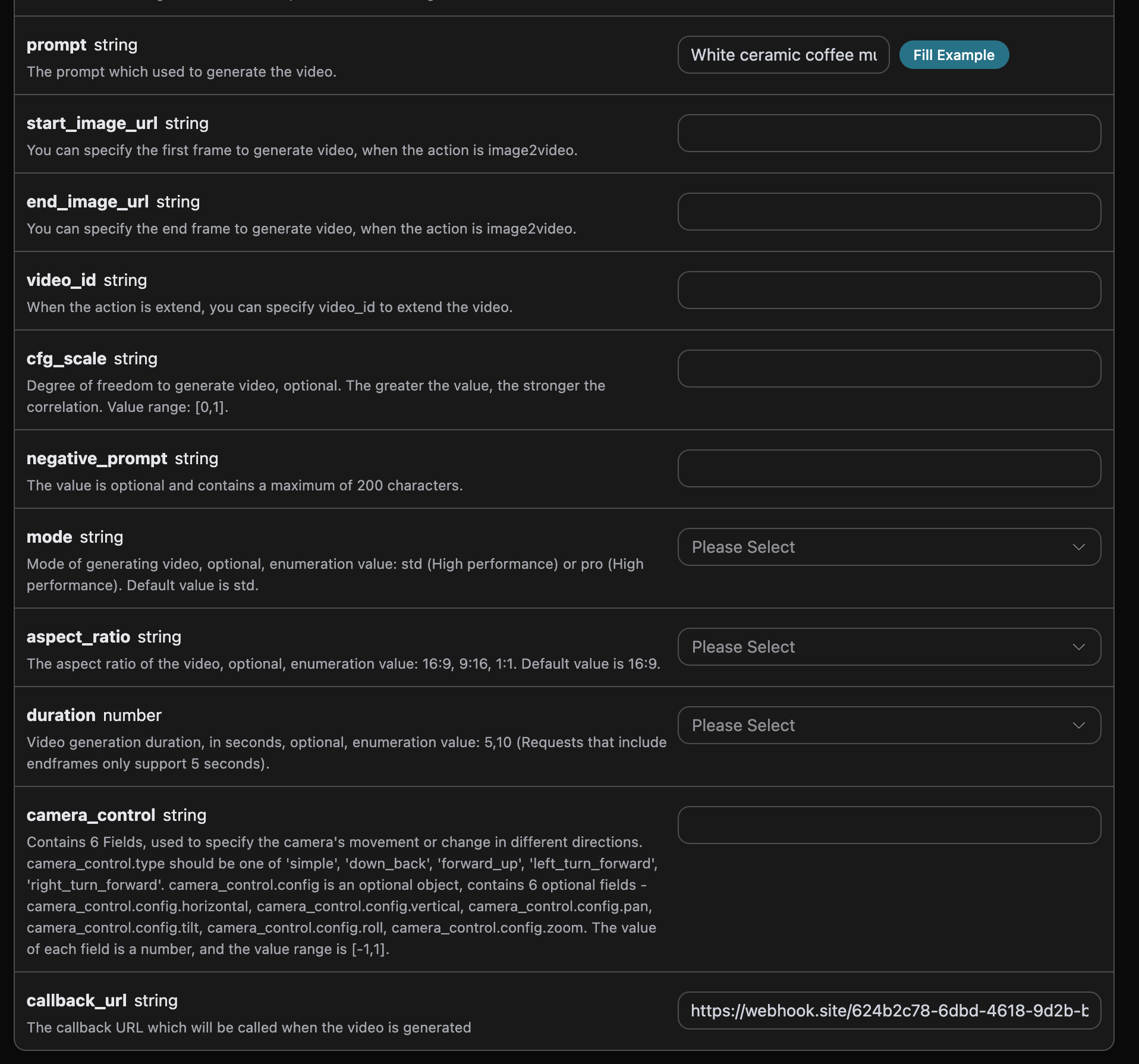
Click Run, and you can find that a result is immediately obtained, as follows:
{
  "task_id": "20068983-0cc9-4c6a-aeb6-9c6a3c668be0"
}
Wait for a moment, and we can observe the generated video result at https://webhook.site/624b2c78-6dbd-4618-9d2b-b32eade6d8c3, as shown in the image:
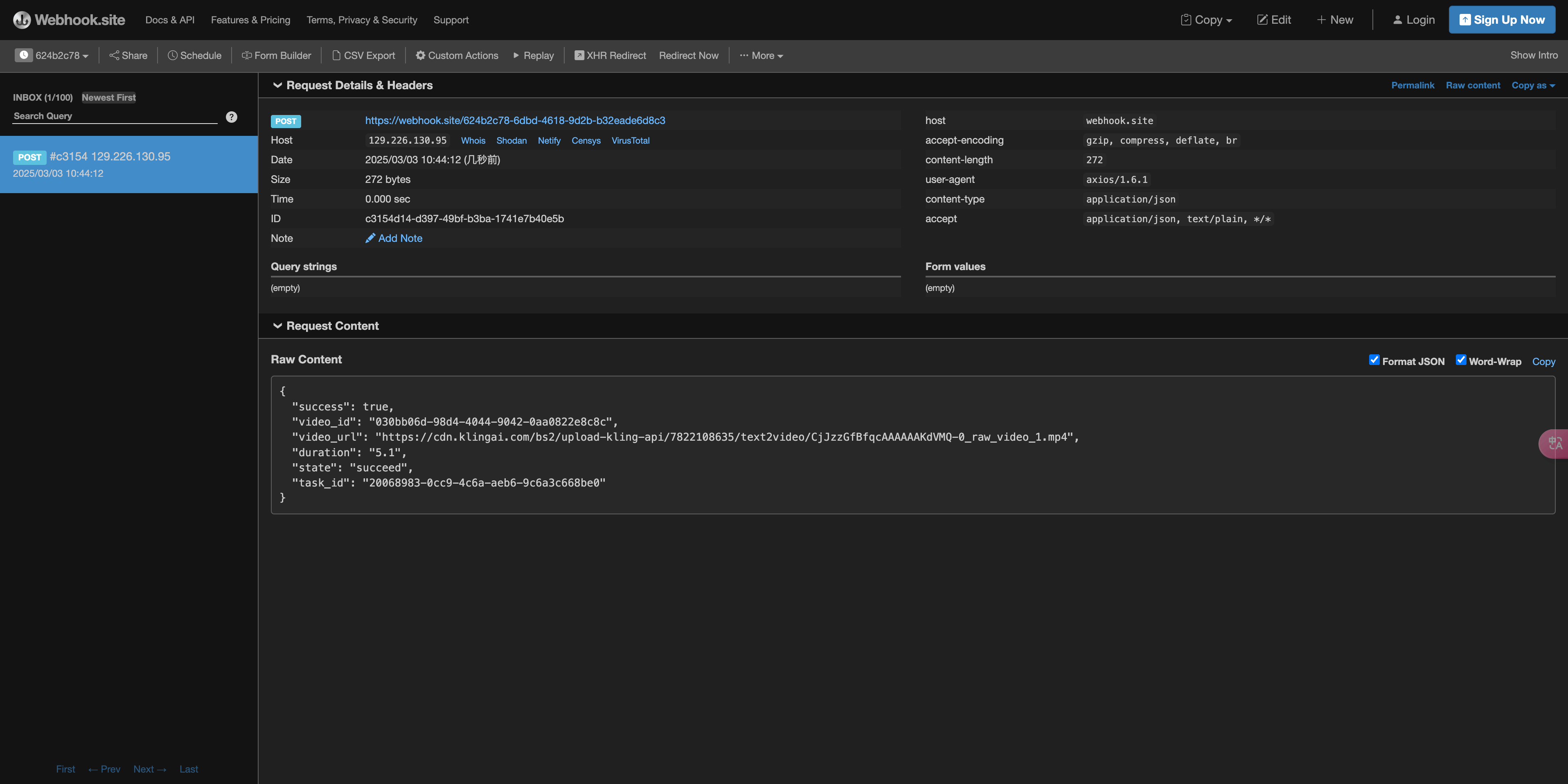
The content is as follows:
{
    "success": true,
    "video_id": "030bb06d-98d4-4044-9042-0aa0822e8c8c",
    "video_url": "https://cdn.acedata.cloud/assets/examples/gemini/04a043bd-6b23-4b4e-945c-ce48158c3eee-3a89912507c7.mp4",
    "duration": "5.1",
    "state": "succeed",
    "task_id": "20068983-0cc9-4c6a-aeb6-9c6a3c668be0"
}
You can see that there is a task_id field in the result. The other fields are similar to those above, and task association can be achieved through this field.
¶ Error Handling
When calling the API, if an error occurs, the API will return the corresponding error code and information. For example:
400 token_mismatched: Bad request, possibly due to missing or invalid parameters.400 api_not_implemented: Bad request, possibly due to missing or invalid parameters.401 invalid_token: Unauthorized, invalid or missing authorization token.429 too_many_requests: Too many requests, you have exceeded the rate limit.500 api_error: Internal server error, something went wrong on the server.
¶ Error Response Example
{
  "success": false,
  "error": {
    "code": "api_error",
    "message": "fetch failed"
  },
  "trace_id": "2cf86e86-22a4-46e1-ac2f-032c0f2a4e89"
}
¶ Conclusion
Through this document, you have learned how to use the Kling Motion Generation API to implement Kling's official motion control functionality. We hope this document can help you better integrate and use this API. If you have any questions, please feel free to contact our technical support team.